Garmin Fenix 8: Best GPS Settings for Maximum Accuracy (Set It Up in Seconds)

Garmin Fenix 8: Best GPS Settings for Maximum Accuracy (Set [...]
Garmin Fenix 8: Best GPS Settings for Maximum Accuracy (Set It Up in Seconds)
The Garmin Fenix 8 is a beast.
Multi-band GNSS.
Advanced training metrics.
Elite-level tracking.
But out of the box?
Your GPS settings might not be optimized.
And bad GPS configuration means:
-
Inconsistent pace
-
Distance errors
-
Jagged maps
-
Misleading workout data
Here’s how to fix it in seconds.
Step 1: Go to Your Activity Profile
On the Fenix 8:
-
Press Start
-
Select your activity (Run, Bike, Trail Run, etc.)
-
Hold Menu
-
Go to Settings → GPS
This is where accuracy lives.
Step 2: Choose the Right GPS Mode
You’ll typically see options like:
-
GPS Only
-
All Systems
-
All Systems + Multi-Band
Here’s what they actually mean.
🟢 GPS Only
-
Lowest battery usage
-
Acceptable accuracy in open areas
-
Not ideal for cities or dense trees
Use if:
You care more about battery than precision.
🟡 All Systems
-
Uses multiple satellite networks
-
Better consistency
-
Balanced battery usage
Best for:
Most athletes training in normal environments.
🔴 All Systems + Multi-Band (Best Accuracy)
-
Uses multiple frequencies
-
Superior tracking in cities, mountains, forests
-
Tighter pace stability
Best for:
Serious training, races, trail runs, urban running.
Downside:
Higher battery drain.
If you’re doing structured endurance training, this is usually worth it.
When Multi-Band Actually Matters
Multi-band shines when:
-
Running near tall buildings
-
Training in wooded trails
-
Doing tight loops
-
Racing in dense environments
If you run open suburban roads, the difference may be minimal.
Know your terrain.
Step 3: Wait for GPS Lock Properly
This is overlooked.
Before starting:
-
Stand still
-
Wait for full satellite lock
-
Don’t start moving immediately
Starting before lock can skew your first few hundred meters.
Over time, that affects training data.
Step 4: Disable Unnecessary Sensors
Extra sensors drain battery and can interfere.
Review:
-
WiFi (turn off during activities)
-
Continuous PulseOx
-
Background Bluetooth
You want your watch focused on GPS and HR during training.
Why GPS Accuracy Actually Matters
This isn’t about maps looking pretty.
It affects:
-
Pace consistency
-
Lap splits
-
Training load calculations
-
Threshold testing
-
VO2 Max estimates
If you’re following a structured sprint triathlon training plan, bad GPS means bad pacing decisions.
Bad pacing decisions mean bad adaptation.
Accuracy compounds over months.
Garmin Data Is Only Step One
Garmin tracks:
-
Pace
-
Distance
-
Heart rate
-
Elevation
-
Load
But data alone doesn’t create progression.
You need structure.
That’s where planning systems come in.
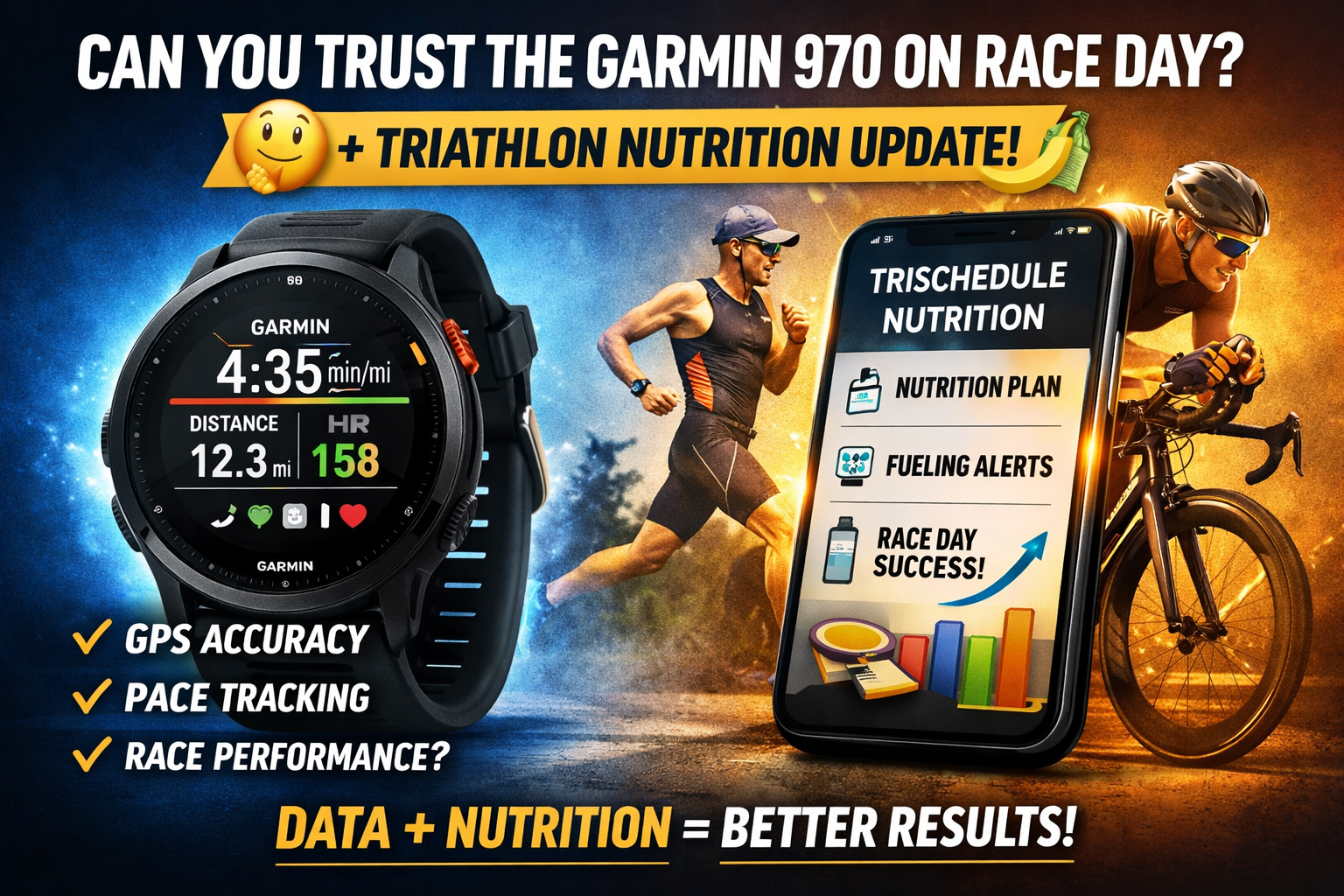
If you’re serious about improving endurance performance, pairing your Garmin device with structured programming matters more than tweaking every metric.
Start the free TriSchedule 6-Week Challenge:
iOS: https://apple.co/4a0aVnH
Android: https://bit.ly/4bEbqoB
Desktop: https://www.trischedule.com/web/
🎨 New TriSchedule App Update: Pick Your Color
Small feature. Big impact.
You can now customize the app interface and choose your color theme.
Why this matters:
Training consistency is psychological.
If your dashboard feels clean, personalized, and motivating, you’re more likely to use it daily.
Small UX upgrades improve adherence.
And adherence drives performance.
Final Setup Recommendation
For most serious athletes:
Use:
All Systems + Multi-Band
Disable:
Unnecessary background sensors
Wait:
For full satellite lock
Then train.
Clean data from day one saves months of confusion later.
Share This Article